How do I Setup MFA using a Yubikey as a Passkey
IMPORTANT: Associating your YubiKey with your Memorial Microsoft account requires that you first set up the Microsoft Authenticator app as the primary method of MFA. This is because the YubiKey MFA registration process must first validate who you are by sending a confirmation code to initiate the set up.
OCIO strongly recommends that you keep one or more backup MFA methods to use in the event that your Yubikey is lost or stolen.
If you do not have any other MFA methods available, see the instructions above to set up MFA using a Yubikey (security key) without other MFA methods - requires calling the OCIO Service Desk first.
Note: These instructions assume you are using a computer and have your YubiKey ready.
Step 1 - On your computer, go to: myaccount.microsoft.com
Step 2 - Expand My Account and click on Security Info in the left hand navigation panel.

Step 3 - Click Add sign-in method

Step 4 - Select Passkey (not the "Passkey in Microsoft Authenticator" option)

Step 5 - Click Add then Next

Step 6 - You will be prompted to sign into your USNH M365 account. Use your existing MFA method to approve the sign in when asked.
Step 7 - Continue from Step 9 in the instructions above to complete the YubiKey registration process.
Outcome
The Security info tab should now display Security key as a sign-in method. You can now use your YubiKey for MFA for M365 when required.
Note: These instructions assume you are using a computer and have your YubiKey ready.
Step 1 - Call the OCIO Service Desk to obtain a Temporary Access Pass, also known as a One Time Passcode (OTP).
Step 2 - After the One Time Passcode (OTP) has been issued to you, on your computer, go to: myaccount.microsoft.com
Step 3 - Expand My Account and click on Security Info in the left hand navigation panel.
Step 4 - You should see Temporary access pass (One Time Passcode) listed in your Security info profile. Click Add sign-in method.

Step 5 - Select Passkey (not the "Passkey in Microsoft Authenticator" option)
Step 6 - Click Add then Next
Step 7 - Under Verify your identity, click Use Temporary Access Pass
Step 8 - Enter the Temporary Access Pass (OTP) that you received from the Help Desk in Step 1 and click Next
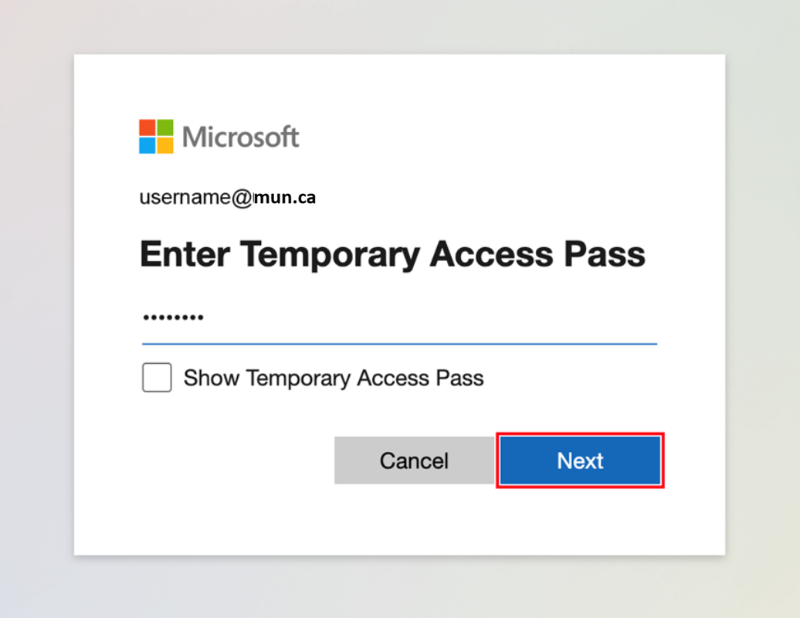
Step 9 - Under Security key, select USB device for Yubikey.

Step 10 - Have your YubiKey ready. Click Next.

Step 11 - When prompted, plug your YubiKey into the USB port, then touch the button or sensor on your YubiKey.
Step 12 - A browser pop-up should appear where you must create a YubiKey PIN. Type the PIN you want in the blank and click Next.
Note: This is a PIN that you create. Keep it safe and do not share it with anyone. OCIO has no access to assist with lost YubiKey PINs. This is why OCIO strongly recommends you have a alternate method(s) set up for MFA.

Step 13 - When prompted, touch your YubiKey again to complete the request.

Step 14 - Click Allow to allow this site to see your security key.

Step 15 - Name your Security key, then click Next.

Step 16 - Success - you're all set! Click Done.
Outcome
The Security info tab should now display Security key as a sign-in method. You can now use your YubiKey for MFA for M365 when required.
