Add a Resource Account to the Outlook Web App
- Open your web browser of choice and go to outlook.office.com
- You will be propted to log in to your @mun.ca email. Input your email and password and follow the prompts for 2-factor authentication.
- From the Outlook Web App, there are two ways you can access the "Add shared folder or mailbox" dialog:
- Click the three-dot menu icon next to your email address in the folders panel and choose "Add shared folder or mailbox"

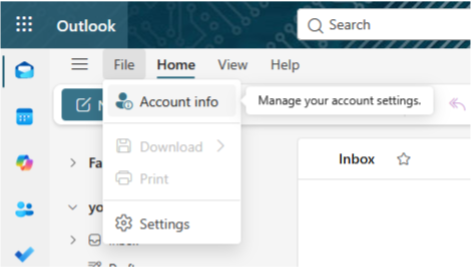
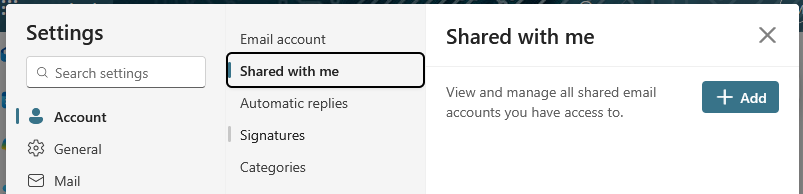
- Click "Account Info" from the File menu at the top. Choose "General > Shared with me" and click "Add"
- Click the three-dot menu icon next to your email address in the folders panel and choose "Add shared folder or mailbox"
- A box will appear that needs the name of the mailbox that you need to access. It should auto populate after you enter in a few characters. Click “Add” and the account will show up under your email as a new expandable folder.